Skip to content
Serving Pennsylvania, New York, New Jersey, and Virginia Call 833-3PLANET
Skip to Cloud Phone guide

Cloud Phone Support

Use every feature without fighting your desk phone.

Place, transfer, hold, park, and conference calls, manage voicemail, and connect your Planet Cloud Phone at home.

Start Here

Your screen tells you what each button does.

Softkeys are the buttons directly below the phone display. Their function changes with the onscreen label and the current state of your call.

softkeys
Read the label on the screen, then press the physical button directly beneath it.

Everyday Calling

The basics you need all day.

Your phone can start a call from the keypad, recent-call list, or a programmed speed dial. Audio controls work before and during the call.

Place a call

Enter a number, choose a recent call, or use a programmed speed dial to get started.

  1. 01

    Enter the number or choose the contact you want to call.

  2. 02

    Press the Send softkey to place the call.

  3. 03

    Press End Call or hang up the handset when finished.

Use Delete to correct a dialing mistake.

Press the down arrow to choose a recent number.

A green BLF key means the contact is available. Red means unavailable.
Speakerphone or handset

Pick up the handset at any point to move audio from the speaker to the handset.

Pick up before dialing to place the call through the handset.

Press the bottom-right speaker button to turn speakerphone on or off.

The top-left screen icon shows the current audio mode.

volume

Change the volume

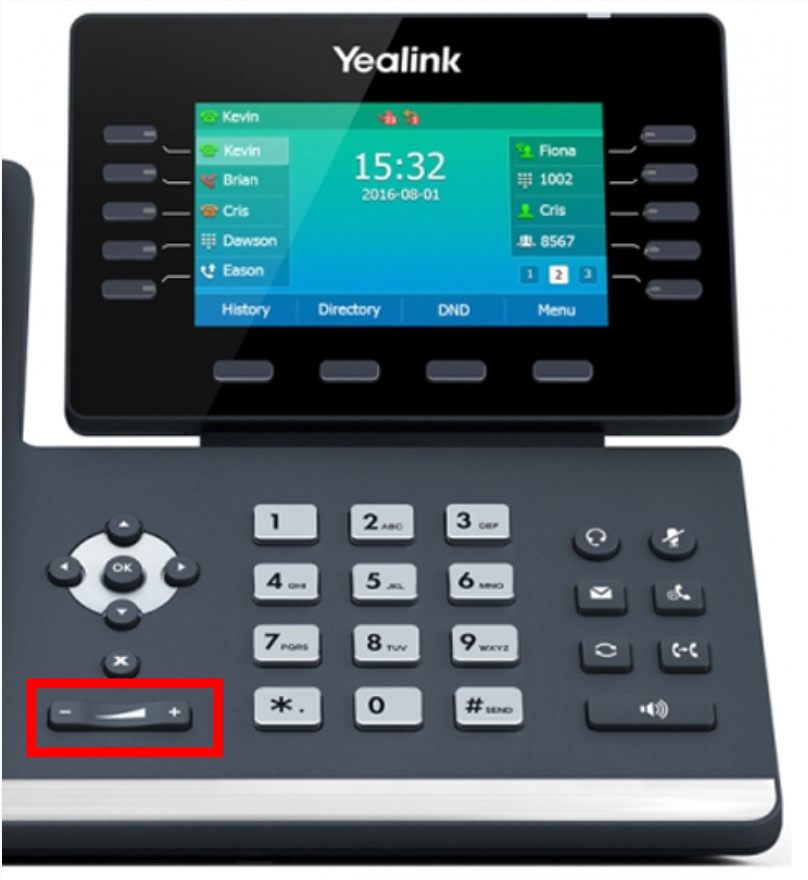
Use the volume control to adjust the active speaker or handset. The current level appears on the screen while you make the change.

  • Adjust while using the handset to change handset volume.
  • Adjust on speakerphone to change speaker volume.
mute

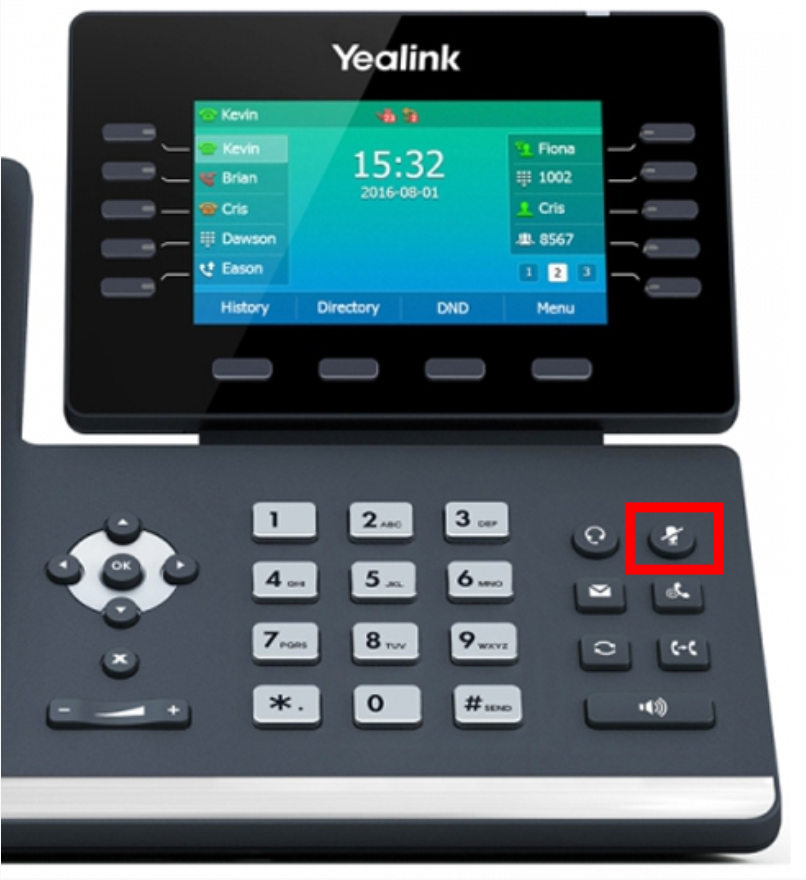
Mute a call

Press the mute button to turn off your microphone. The phone screen confirms that the call is muted.

  • Press the same button again to unmute.
  • Mute affects your microphone, not the audio you hear.

Active Call Controls

Move the conversation where it needs to go.

Hold, transfer, or park a live call without losing the caller.

pause

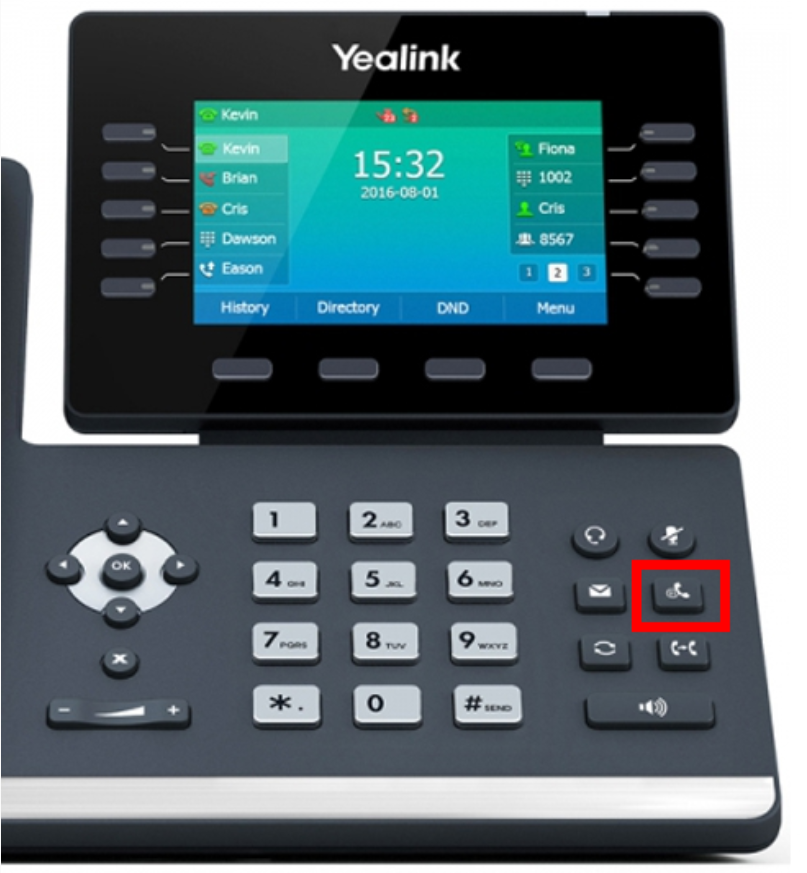
Hold and resume a call

Put a caller on hold without ending the call.

01

Press the Hold button during an active call.

02

Press Hold again or choose Resume to return to the call.

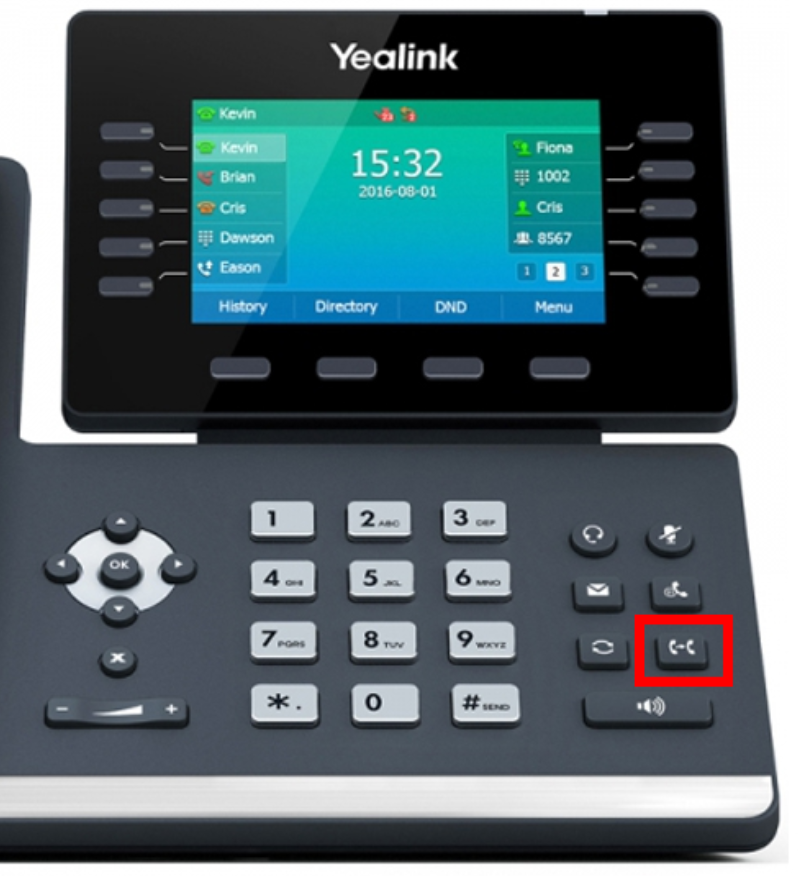
Transfer a call

Send the caller directly to someone else or speak with the recipient before completing the transfer.

Blind transfer

  1. Press Transfer.
  2. Enter the destination number.
  3. Press B Transfer.

The caller moves directly to the destination.

Announced transfer

  1. Press Transfer, enter the number, then press Send.
  2. Speak with the recipient.
  3. Press Transfer again to complete the handoff.
transfer

Advanced Features

Handle more than one call with confidence.

Move between calls, redial recent contacts, or temporarily send incoming calls to voicemail.

Multiple calls

Start another call without ending the first one.

  1. 01

    Place the first call on Hold.

  2. 02

    Choose New Call, enter a number, then press Send.

  3. 03

    Use the up and down arrows to select a call.

  4. 04

    Choose Resume or Swap to switch the active call.

Do Not Disturb

Send every incoming call directly to voicemail.

  1. 01

    Press the DND softkey to turn the feature on.

  2. 02

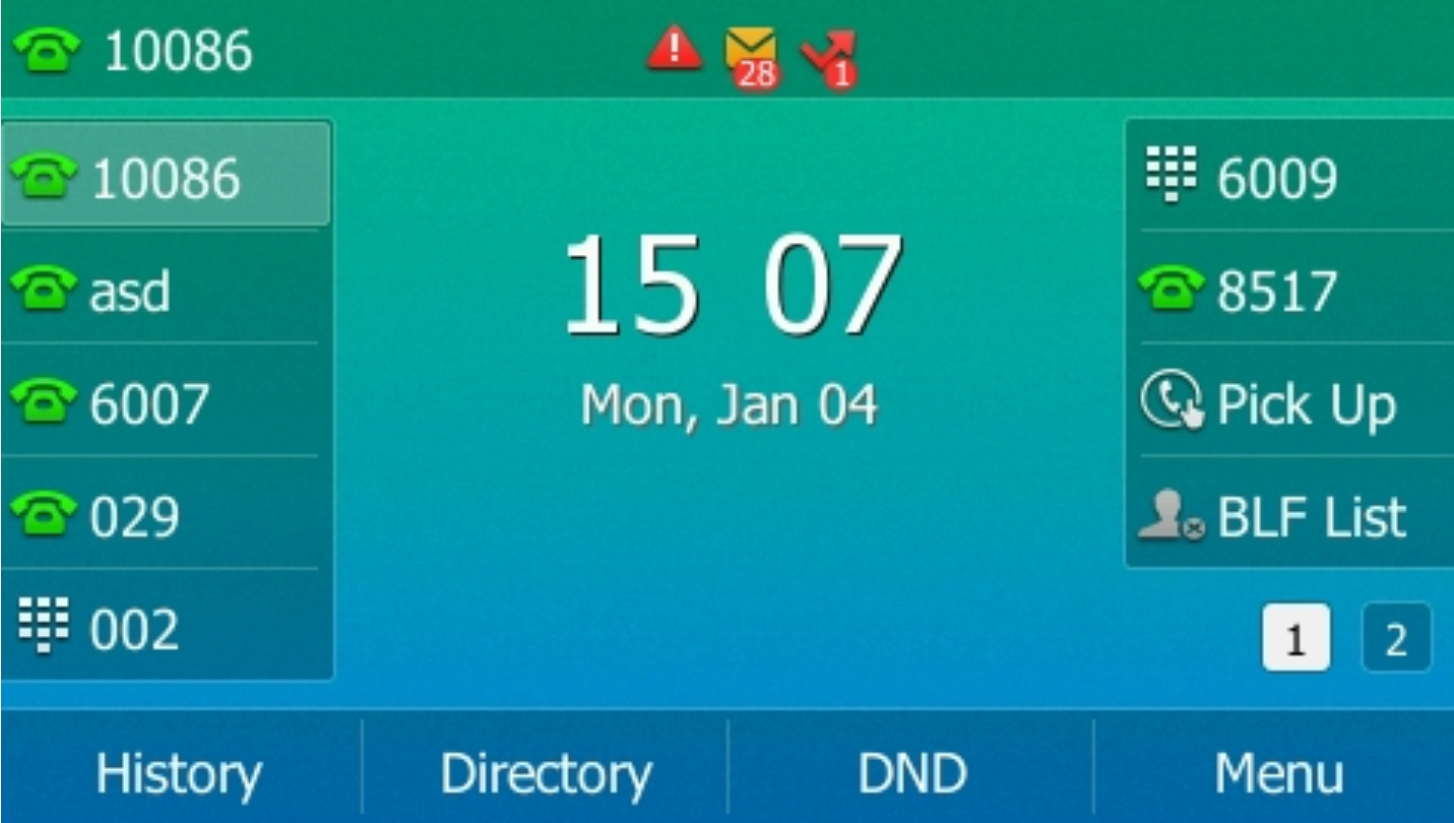
    Confirm the DND icon appears at the top-center of the screen.

  3. 03

    Press DND again when you are ready to receive calls.

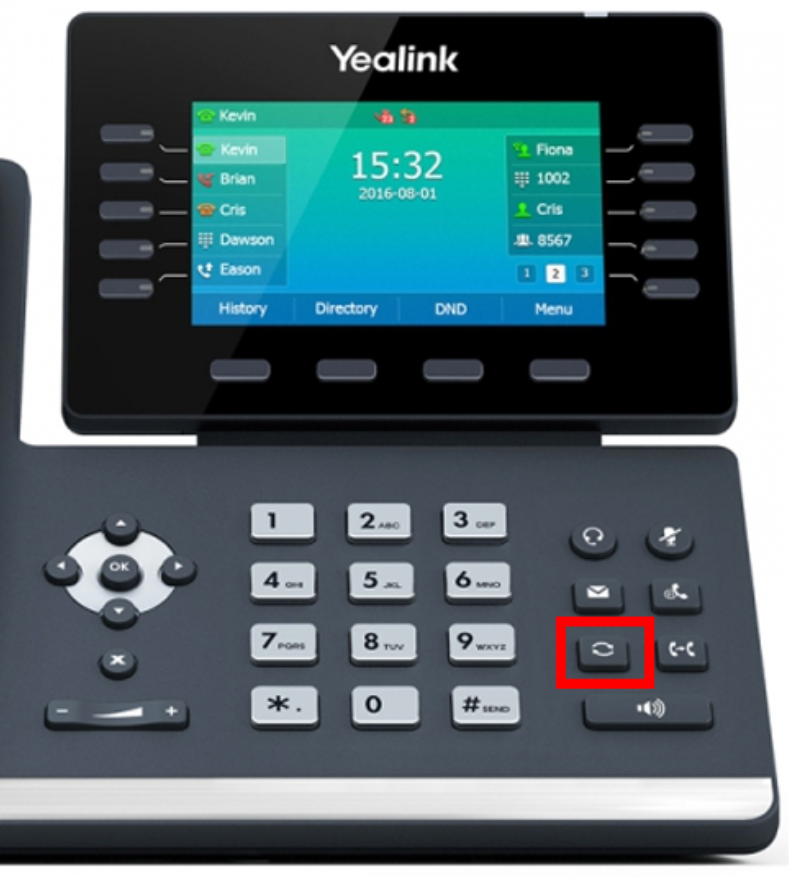
Redial and history

Return a recent call directly from the phone.

  1. Press the Redial button.
  2. Use the arrow keys to select a recent call.
  3. Press Redial again or choose Send.
  4. Press Redial twice to call the last-dialed number immediately.
redial

Start a conference call

Bring a second party into an active call, then manage each participant from the same phone.

  1. 01

    Call or answer the first party.

  2. 02

    Press Conference.

  3. 03

    Call the second party and press Send.

  4. 04

    Press Conference again to join the calls.

Manage participants

Choose Manage, use the left and right arrows to select a party, then use Far Mute or Remove. Choose Split to separate the conference into individual held calls.

Voicemail

Listen, secure, and personalize your mailbox.

Check new messages and manage your voicemail settings directly from your Cloud Phone.

Check your messages

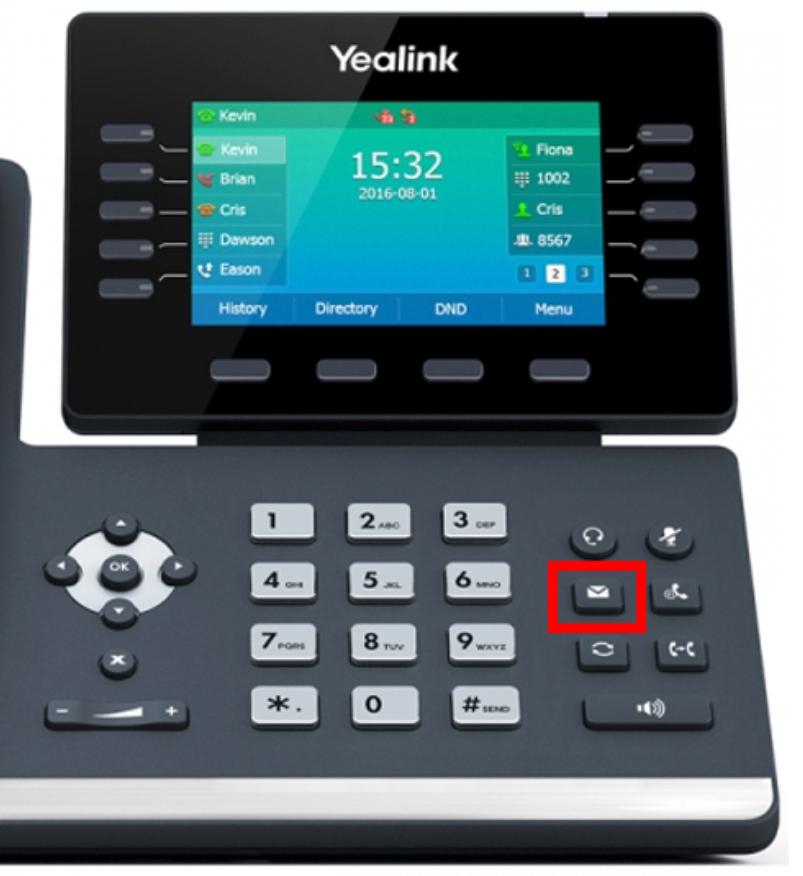
When voicemail is waiting, the message button illuminates green and the power indicator slowly flashes red.

  1. 01

    Press the illuminated voicemail button.

  2. 02

    Enter your PIN, then press #.

  3. 03

    Follow the prompts to listen to and manage your messages.

The idle screen also shows a message-waiting indicator when you have new voicemail.

voicemail

Change your voicemail settings

PIN and greeting changes begin with the same mailbox menu.

01

Press the voicemail button.

02

Enter your PIN, then press #.

03

Press 0 for mailbox options.

Default PIN 2580
05

Change your PIN

Press 5, then enter your new four-digit PIN.

01

Change your greeting

Press 1, then follow the prompts to record your greeting.

Home Setup

Connect your Cloud Phone away from the office.

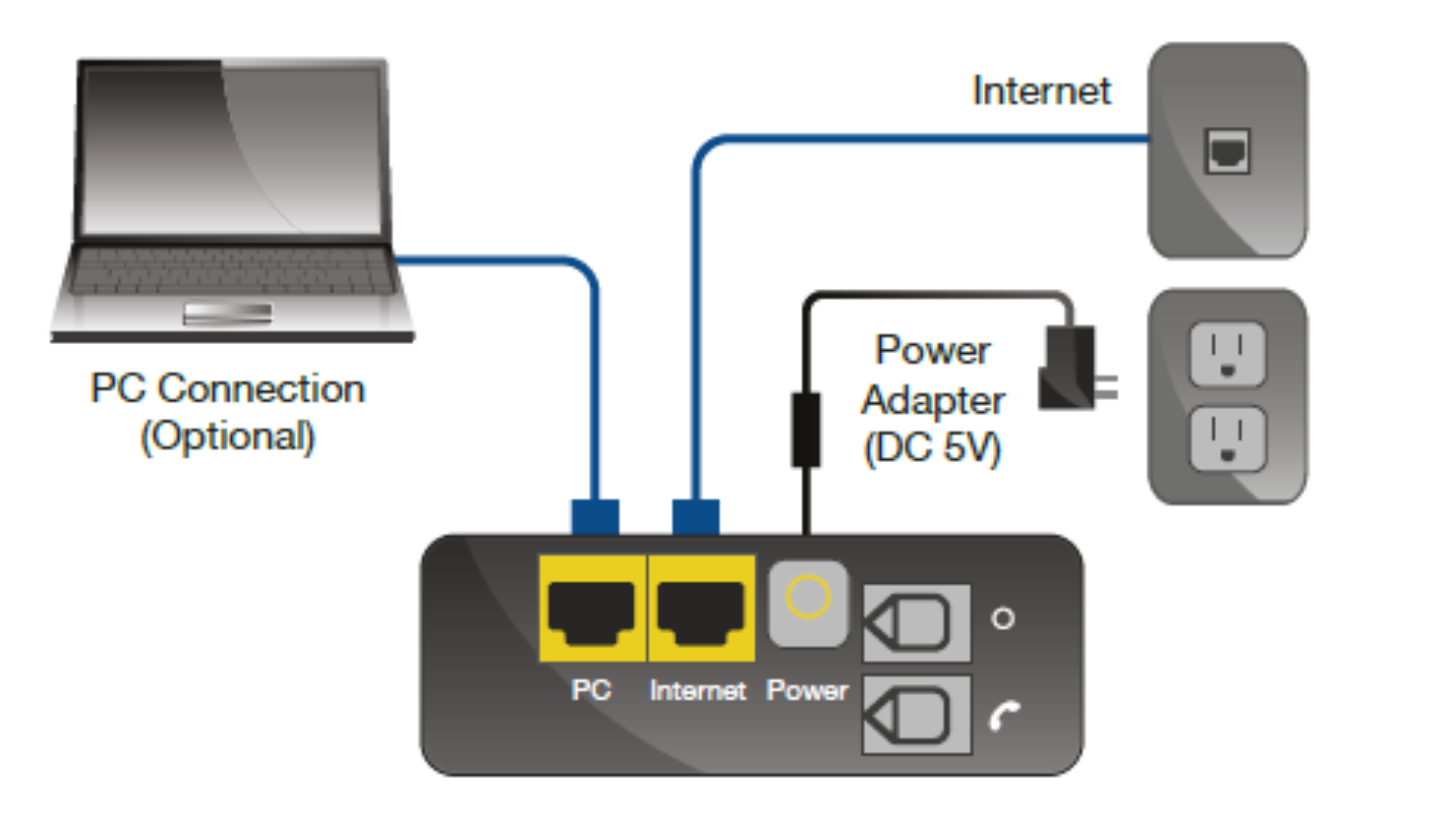
The phone needs a wired internet connection and its supplied power adapter.

01
Connect Ethernet

Plug the provided cable from the phone’s Internet port directly into your router.

02
Connect power

Plug the power adapter into the port labeled DC5V on the back of the phone.

03
Wait for startup

The phone will power on and become ready for use.

diagram

Need a Hand?

Talk to Planet technical support.

Get help with call features, voicemail access, phone configuration, or connection issues.

More support resources